Guide
Best aspect ratio for AI images: how to choose the right shape
There is no single best aspect ratio for AI images: match the shape to where the image will appear, and pick it before you generate. Use 1:1 for square posts, 4:5 or 3:4 for portraits, 3:2 for photos in an article, 16:9 for headers and slides, and 9:16 for full-screen vertical formats. Every ratio on AIPhoto-Generator comes out at about 1 megapixel, from 1024 × 1024 pixels at 1:1 to 1376 × 768 at 16:9.
Last updated
Which aspect ratio to use, at a glance
Decide where the image will be used, then pick the matching shape in the generator. The table gives each ratio's output size in pixels, its typical use and a real image made at that ratio.
Swipe the table sideways to see all columns.
| Ratio and size | Shape | Use it for | Real example |
|---|---|---|---|
| 1:11024 × 1024 | Square | Square posts, profile images and product tiles | 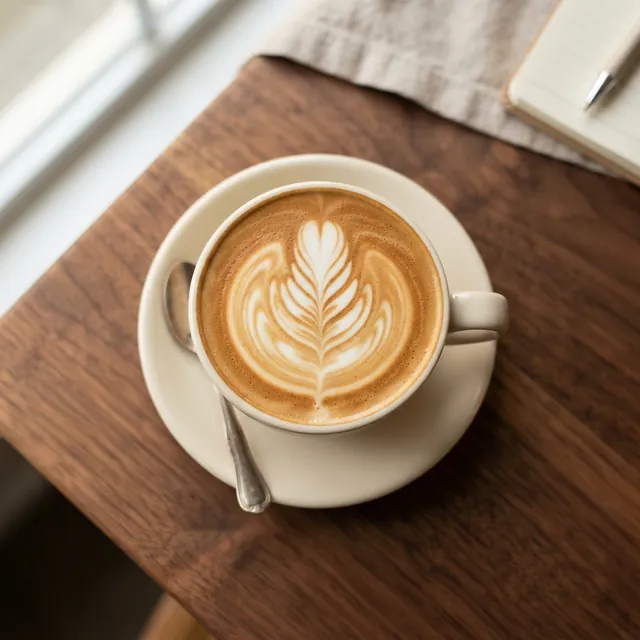 Latte art from abovePhotorealistic Latte art from abovePhotorealistic |
| 4:5928 × 1152 | Portrait | Instagram feed posts and portraits | 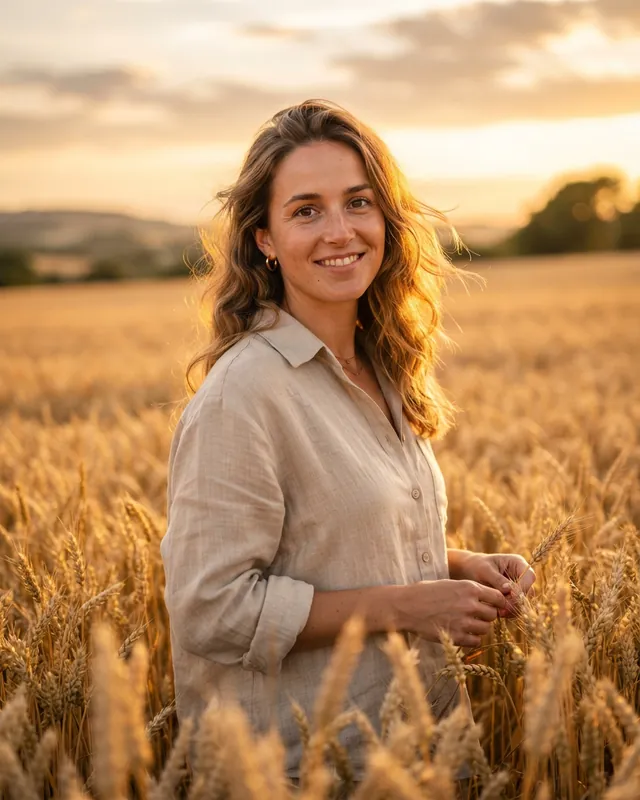 Golden hour portraitPhotorealistic Golden hour portraitPhotorealistic |
| 3:4896 × 1200 | Portrait | Taller Instagram feed posts, portraits and Pinterest | 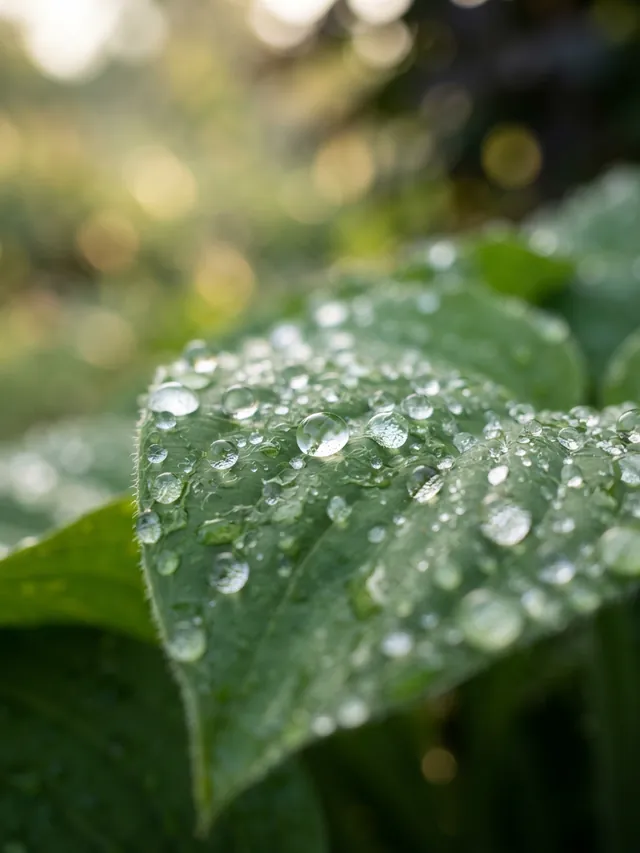 Dew on a leafPhotorealistic Dew on a leafPhotorealistic |
| 3:21264 × 848 | Landscape | Classic photos and in-article blog images | 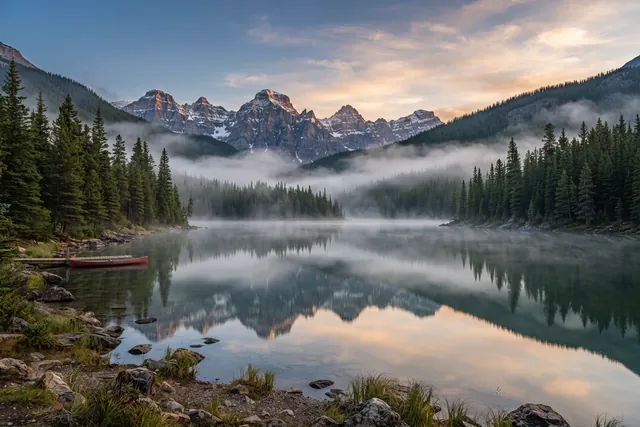 Alpine lake at dawnPhotorealistic Alpine lake at dawnPhotorealistic |
| 16:91376 × 768 | WideLandscape | Banners, blog headers and slides | 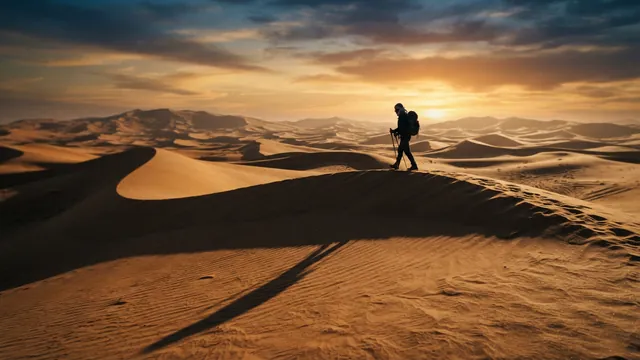 Dunes at sunsetCinematic Dunes at sunsetCinematic |
| 9:16768 × 1376 | StoryPortrait | Stories, Reels and phone wallpapers | 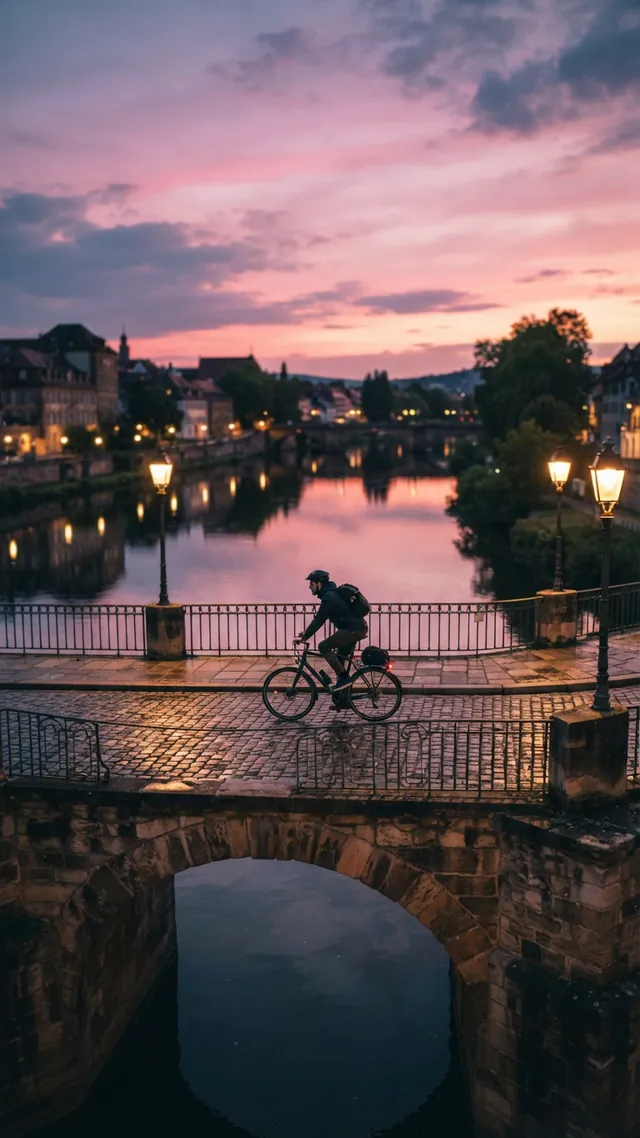 Bridge at duskCinematic Bridge at duskCinematic |
What an aspect ratio is
An aspect ratio is an image's width compared with its height. 3:2 means 3 units wide for every 2 units tall, so the image is landscape; 1:1 is square; and when the second number is bigger, as in 4:5 or 9:16, the image is portrait.
The ratio describes the shape, not the size: a 16:9 image can be a phone screenshot or a cinema screen. 16:9 and 9:16 are the same shape turned on its side, one wide and one tall.
The 6 aspect ratios and their output sizes
AIPhoto-Generator offers 6 ratios, 1:1, 4:5, 3:4, 3:2, 16:9 and 9:16, and each one comes out at about 1 megapixel. Wide ratios have more pixels across and fewer down; tall ratios the reverse.
Swipe the table sideways to see all columns.
| Ratio | Orientation | Output size (pixels) | Megapixels |
|---|---|---|---|
| 1:1 | Square | 1024 × 1024 | 1.05 |
| 4:5 | Portrait | 928 × 1152 | 1.07 |
| 3:4 | Portrait | 896 × 1200 | 1.08 |
| 3:2 | Landscape | 1264 × 848 | 1.07 |
| 16:9 | Landscape | 1376 × 768 | 1.06 |
| 9:16 | Portrait | 768 × 1376 | 1.06 |
Sizes measured from real generations, and every image downloads as a PNG. They are close to the named ratio rather than exact: 16:9 comes out at 1376 × 768, about 1.79:1 rather than 1.78:1. For an exact target such as 1920 × 1080, resize or crop the download in your own editor.
Does aspect ratio affect AI image quality?
The pixel count stays about the same: every ratio comes out at about 1 megapixel, from 1024 × 1024 at 1:1 to 1376 × 768 at 16:9. What the shape changes is what fits in the frame, and how many pixels you lose if you crop to another shape later.
AIPhoto-Generator does not upscale, so the downloaded PNG is the largest version of an image you will have. Cropping it to another shape throws away pixels. That's why the most useful habit is to generate at the final ratio from the start.
How the ratio changes what ends up in the frame
The ratio shapes the picture the model composes. A wide frame tends to give a scene room to stretch out; a tall frame tends to let one subject fill the height. Changing the ratio gives a new composition, not a crop of the old one.
Both are real results, shown with their exact prompts on the AI photo prompts page. Other prompts will compose differently: these show tendencies, not rules.
Choose by where the image will be used
The simplest way to choose is by destination: wide for banners and slides, 3:2 for photos inside an article, square or portrait for feeds, and 9:16 for anything shown full-screen on a phone held upright.
- Website hero images and blog headers
- 16:9A wide banner leaves room for a headline beside the subject. Header sizes are covered in AI stock photos.
- Photos inside an article
- 3:2The shape of a classic camera photo, which sits naturally in a column of text.
- Social feed posts
- 1:14:53:4Square is the safe default; a portrait shape takes up more of the screen in a feed. The ratio each platform uses is listed in AI images for social media.
- Full-screen vertical formats and phone wallpapers
- 9:16Fills a phone screen held upright.
- Slides and presentations
- 16:9Matches the usual widescreen slide, so the image can fill the slide without bars.
- Product tiles, profile images and thumbnails
- 1:1Square images line up in a grid and survive being cropped to a circle.
Choose by subject
When the destination doesn't decide for you, let the subject decide: tall frames for a single person or object, wide frames for landscapes and scenes, and square for food from above and flat lays.
One person, one object, one plant
4:5 or 3:4
A tall frame follows the subject's height, so it can fill the picture instead of floating in empty space.
Landscapes, cityscapes and wide scenes
3:2 or 16:9
A wide frame gives a horizon, a ridge or a street room to run across the picture.
Food from above, flat lays and centered objects
1:1
Top-down scenes are usually arranged around a center, and a square keeps the margins even on every side.
A standing figure, a tall building, a waterfall
9:16
The tallest shape fits subjects that are much taller than they are wide.
Matching the frame to the subject also makes AI photos look more natural; see fix 8 in How to make AI photos look real.
Write the prompt for the frame
Write the prompt for the shape you picked. For a wide frame, describe what stretches across it; for a tall frame, describe the subject from top to bottom; and say where the subject sits if you want space left around it.
Real prompt · Cinematic · 16:9
Sweeping sand dunes at sunset with long shadows and a lone traveler walking along the ridge
Written for a wide frame: “sweeping” dunes and a traveler walking along the ridge give the scene a direction across the picture.
See the result: Dunes at sunsetReal prompt · Photorealistic · 1:1
Top-down photo of a latte with rosetta latte art on a walnut table, soft morning light
Written for a square frame: “top-down” puts one round subject in the center, with the table around it.
See the result: Latte art from aboveSuggested phrasings, not tested
- For a 16:9 header with room for a headline you'll add later in your own editor: “…with the subject on the right third and open sky on the left.” Don't ask the generator to write the headline: text inside images is unreliable with this model.
- For 9:16: “…full-length, centered, with space above the head.”
These follow from the examples above but have not been generated for this page, so results may vary. The words each style adds are listed in AI photo styles compared.
Mistakes to avoid
Most aspect-ratio problems come from choosing the shape too late: cropping afterwards, expecting the same picture in a new shape, or placing the subject where a narrow frame cuts it off.
- Generating square, then cropping to wide
- Cropping a 1024 × 1024 square to 16:9 leaves 1024 × 576 pixels, about 0.59 megapixel. Generating at 16:9 gives 1376 × 768, about 1.06 megapixel, and a composition made for the wide frame.
- Putting the subject at the edge of a tall frame
- In 9:16 and 3:4 the sides are narrow, so a subject described as standing to one side can end up cut off. Describe it as centered, or say what fills the space beside it.
- Expecting the same image after changing the ratio
- Every generation is new and there is no seed setting, so changing the ratio gives a new picture, not a wider or taller version of the last one.
- Looking for a custom ratio or an exact pixel size
- AIPhoto-Generator offers 6 fixed ratios (1:1, 4:5, 3:4, 3:2, 16:9 and 9:16). If you need an exact size, generate at the closest ratio and resize or crop in your own editor.
How to set the aspect ratio in AIPhoto-Generator
In AIPhoto-Generator, the aspect ratio is a setting next to the prompt: type what you want, pick a style and a ratio, and generate. Your first 3 images are free, with no sign-up.
- Type your prompt in the generator.
- Pick a style. Photorealistic is the default.
- Pick one of the 6 aspect ratios: 1:1, 4:5, 3:4, 3:2, 16:9 and 9:16.
- Generate. It usually takes about 5 seconds, and the free plan makes one PNG per prompt; paid plans allow up to 4.
- Download the PNG.
Open the generator at
Need more images? See pricing.
Questions about AI image aspect ratios
Pick the ratio for where the image will appear; every ratio is about 1 megapixel, and there are no custom sizes.
What is the best aspect ratio for AI-generated images?
It depends on where the image will be used, so choose before you generate: 1:1 for square posts and thumbnails, 4:5 or 3:4 for portraits, 3:2 for photos inside an article, 16:9 for headers and slides, and 9:16 for full-screen vertical formats.
Does aspect ratio affect AI image quality?
The pixel count stays about the same: each image is a PNG of about 1 megapixel at every ratio, from 1024 × 1024 at 1:1 to 1376 × 768 at 16:9. What the shape changes is what fits in the frame, and cropping to another shape later removes pixels.
What is the most versatile aspect ratio for AI images?
If you don't know the destination yet, 1:1 is the easiest to crop to a portrait or landscape shape later. Each crop gives up pixels, though, so generating at the final ratio gives a larger image and a composition made for that shape.
Can I change the aspect ratio after generating?
AIPhoto-Generator has no editing or cropping tools. Generate again at the new ratio, or crop the downloaded PNG in another editor. A new generation is a new picture, not a resized version of the old one.
Can I use a custom aspect ratio or an exact pixel size?
No. Choose one of the 6 ratios: 1:1, 4:5, 3:4, 3:2, 16:9 and 9:16. The exact pixel size of each is listed in the table above.
Which aspect ratios suit portraits and landscapes?
Tall ratios (4:5 or 3:4) suit a single person or object. Wide ratios (3:2 or 16:9) suit landscapes and wide scenes.
Is about 1 megapixel enough?
It is plenty for websites, social posts and slides. For print, a 1024 × 1024 image covers about 3.4 × 3.4 inches at 300 pixels per inch, so it suits small prints only. AIPhoto-Generator does not upscale images.
How this guide was made: every image on this page is a real generation from AIPhoto-Generator, shown with its style and ratio, and links to the page with its exact prompt. Pixel sizes were measured from real generations. Phrasings marked “not tested” are suggestions. The example images were resized for the web to 640 and 1280 pixels wide, cropped to the exact aspect ratio where needed and converted to WebP, without retouching; for every aspect ratio except 16:9 the 1280-pixel copy is larger than the image the generator returns.