AI virtual background generator: A virtual background for Zoom, Teams and Meet
Describe the room or scene you'd like behind you, and AIPhoto-Generator makes a new 16:9 image in about 5 seconds. Download the PNG and add it as your background in Zoom, Microsoft Teams or Google Meet.
It makes new 16:9 background images from text. It doesn't blur or remove your real background, make video backgrounds or add your logo. Your meeting app cuts you out and places you in front of it.
- 3 free images
- No sign-up
- PNG download
Last updated

Real results from AIPhoto-Generator; the call buttons are a mockup; images made at 3:2 are cropped to 16:9 here. The main image's prompt: “Close-up of a warm beige lime plaster wall with soft raking light revealing subtle texture, abstract background photograph”
Shapes
Which shape to pick for a call background
Most laptop cameras and webcams send 16:9 video, so start there. Each image is made at one aspect ratio.
16:9
Zoom, Teams and Meet
Zoom suggests 16:9 at 1280 × 720 or 1920 × 1080, with 1280 × 720 as the minimum if you're unsure of your camera. Ours is above that minimum.
Output: 1376 × 768 px · source: Zoom Support: changing your virtual background image
Try it at 16:93:2
Older 4:3 cameras
There's no 4:3 option. 3:2 is the closest: crop the middle 1131 × 848 px for a 4:3 shape, trimming about 11% from the sides.
Output: 1264 × 848 px
Try it at 3:2
Prompt ideas
Virtual background prompts to start from
Each prompt keeps the middle calm, where your head and shoulders go, and puts the interest at the edges. They open in the generator ready to run.
Bright home office
A bright home office with a white desk against the right wall, a tall plant in the left corner, a plain light grey wall in the center, soft daylight from a window on the left, eye level, gentle depth of field, no people, no text
- Style
- Photorealistic
- Ratio
- 16:9
A plain wall behind your head; the detail stays at the edges.
Home library
A cozy home library at dusk, wooden shelves of plain unlabeled books on both sides, a warm reading lamp on the left, a calm dark wood panel wall in the center, eye level, soft depth of field, no people, no text
- Style
- Editorial
- Ratio
- 16:9
“Unlabeled books” keeps fake titles off the spines.
Minimal lounge
A minimal lounge with a low beige sofa along the bottom edge, a round paper lamp on the right, a smooth warm white wall in the center, soft afternoon light, eye level, no people, no text
- Style
- Editorial
- Ratio
- 16:9
Simple and warm, with nothing busy behind you.
Plain plaster wall
A softly lit warm beige plaster wall with a faint shadow of leaves in the upper right corner, eye level, gentle texture, nothing in the center, no people, no text
- Style
- Photorealistic
- Ratio
- 16:9
The most neutral choice for interviews and client calls.
Lakeside window
A wide window looking out on a calm lake and pine hills at dawn, a wooden window frame at the edges, the lake at eye level, soft, dim morning light, no people, no text
- Style
- Photorealistic
- Ratio
- 16:9
Nature without the busy detail of a forest right behind you.
Soft gradient
A smooth gradient of soft blue to warm peach light on a seamless backdrop, slightly brighter at the edges, minimal and calm, no objects, no text
- Style
- No style
- Ratio
- 16:9
Abstract, so it never looks like a fake room.
Winter cabin
A cozy timber cabin interior in winter, a stone fireplace with a low fire on the left, snowy pines through a window on the right, a calm wooden wall in the center, warm light, eye level, no people, no text
- Style
- Editorial
- Ratio
- 16:9
A seasonal look for end-of-year calls.
Space station lounge
A calm space station lounge with a large round window on the right showing Earth, soft white curved walls in the center, gentle blue light, eye level, no people, no text or lettering
- Style
- Cinematic
- Ratio
- 16:9
For team socials and fun calls.
Background ideas
Virtual background ideas by setting
Ideas for work calls, interviews and fun meetings. Each one is a full prompt that opens in the generator.
Professional
Tidy study
A tidy study with a dark wood desk edge at the bottom, a framed abstract print on the left wall, a plain sage-green wall in the center, soft lamp light, eye level, no people, no text
Modern meeting room
A modern meeting room with frosted glass walls on both sides, the edge of a long empty table at the bottom, a plain white wall in the center, soft overhead light, eye level, no people, no logos, no text
Concrete loft
A loft with a smooth grey concrete wall in the center, a black steel window on the right, a potted olive tree on the left, soft daylight, eye level, no people, no text
Cozy
Coffee shop corner
A quiet coffee shop corner with a brick wall in the center, warm hanging bulbs along the top edge, an empty wooden counter on the right, soft blur, eye level, no people, no signs or text
Rainy-day window seat
A cozy window seat on a rainy day, cushions along the bottom edge, rain on the glass to the right, a plain cream wall in the center, soft grey light, eye level, no people, no text
Plant corner
A bright room with houseplants on shelves at both edges, a plain white wall in the center, warm morning light, eye level, gentle depth of field, no people, no text
Nature
Mountain deck
A view from a cabin deck over misty mountains at sunrise, wooden railings along the bottom edge, soft pastel sky, eye level, no people, no text
Beach house
An airy beach house room with white walls, linen curtains at the edges and a calm sea through the window on the right, bright soft light, eye level, no people, no text
Garden doorway
A quiet garden seen through an open wooden doorway, maple leaves and moss at the edges, a plain paper screen in the center, soft overcast light, eye level, no people, no text
Fun and seasonal
Underwater office
A calm underwater office with a coral reef and small fish seen through a curved glass wall on the right, soft blue light, a smooth white wall in the center, eye level, no people, no text
Floating islands
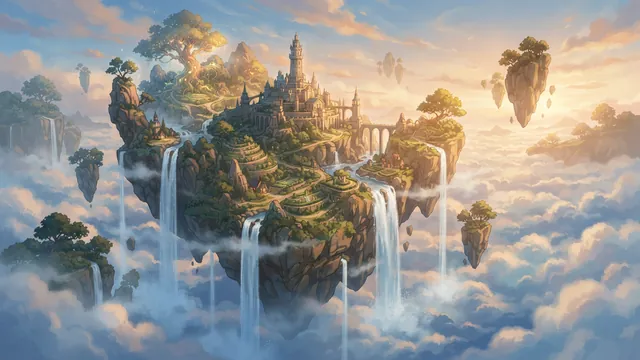
Floating islands with waterfalls in a sea of clouds, soft afternoon light, open sky in the center of the frame, no people, no text
Holiday lights
A cozy living room with warm string lights along the top edge and a decorated tree in the right corner, a plain wall in the center, soft evening light, eye level, no people, no text or lettering
Skip real company offices, university or film sets, logos and real people: our Acceptable Use Policy doesn't allow them. A generic room works just as well on a call.
Prompt formula
A prompt formula: keep the center calm
Your head and shoulders cover the middle of the frame, so let the edges do the talking.
[setting], [2–3 objects at the left and right edges], [light and time of day], plain [color] wall in the center, eye level, soft depth of field, no people, no text
01 Instead of “office background”
A small home office with a walnut shelf of plain books on the left, a floor lamp on the right, a plain warm grey wall in the center, soft window light, eye level, soft depth of field, no people, no text
02 Instead of “nice nature background”
A wooden cabin window looking out on a green valley, a potted fern on the left sill, the window frame at the edges, soft overcast light, eye level, no people, no text
03 Instead of “cool background”
A calm abstract backdrop of soft teal and navy light with gentle curves at the edges and a smooth, even center, minimal, no objects, no text
Words that cause trouble
Text, signs or posters Your self-view is mirrored, so words look backwards to you, and AI lettering is unreliable anyway.
Busy detail behind your head Stripes, crowded shelves or a glaring light right behind your head make the cut-out edge around you more noticeable.
“Wide angle” or “fisheye” Strong lens distortion looks odd behind a flat webcam picture. “Eye level” keeps the horizon where your camera is.
People, logos or real places Real people, brands and logos aren't allowed. Describe a generic office instead of a real one.
Examples
Real results that suit a call
Real images from AIPhoto-Generator, each with the exact prompt that made it. None was made as a call background, but each shows a setting or mood that works behind one.
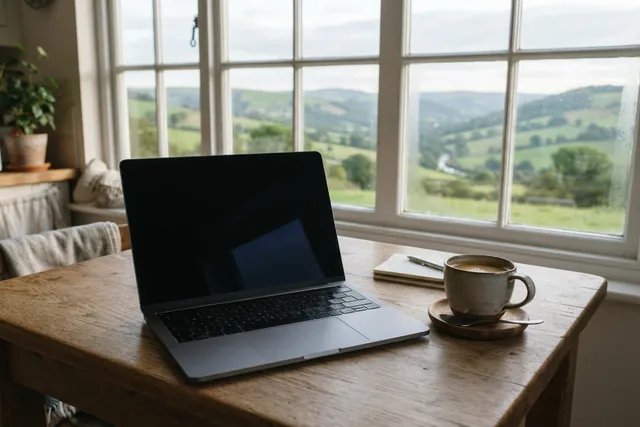
A home-working scene with a window view. For a call, ask for a plain middle, as the prompts above do.
Prompt: A plain unbranded laptop with no logo or lettering and a dark screen on a kitchen table beside a large window overlooking green hills, a mug of coffee, calm morning light
Real result · Photorealistic · made at 3:2 · about this image: Workspace with a view
A plain plaster wall: neutral enough for interviews and client calls.
Prompt: Close-up of a warm beige lime plaster wall with soft raking light revealing subtle texture, abstract background photograph
Real result · No style · made at 16:9 · about this image: Plaster wall texture
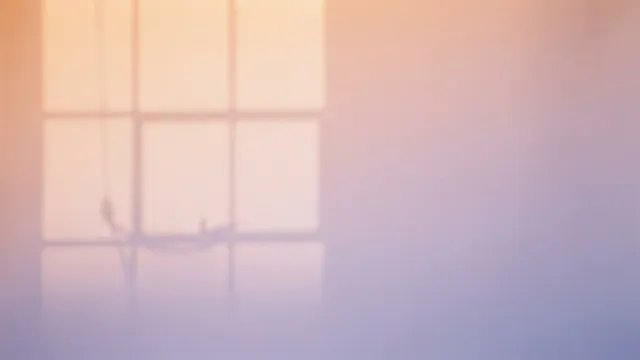
A soft gradient with a window shadow: abstract, so it never looks like a fake room.
Prompt: Soft gradient of warm peach to lavender light on a seamless paper backdrop with the faint shadow of a window frame, minimal abstract background, photograph
Real result · No style · made at 16:9 · about this image: Peach and lavender backdrop
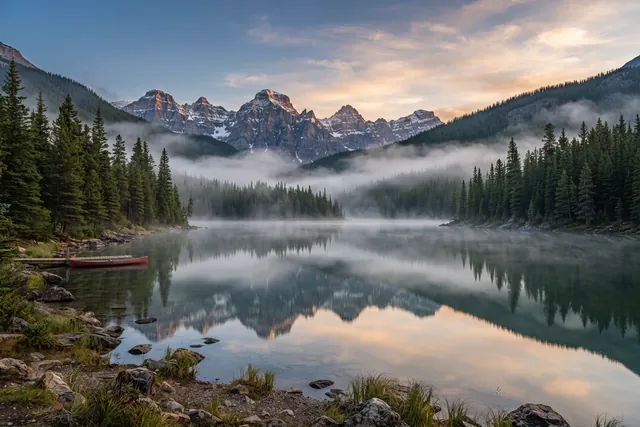
A calm lake at 3:2, the closest shape for older 4:3 cameras.
Prompt: Still alpine lake at dawn, mist drifting over the water, pine-covered mountains mirrored on the surface
Real result · Photorealistic · made at 3:2 · about this image: Alpine lake at dawn
A fantasy scene for team socials and fun calls.
Prompt: Concept art of a floating island with waterfalls spilling into a sea of clouds, soft afternoon light
Real result · Illustration · made at 16:9 · about this image: Floating island concept
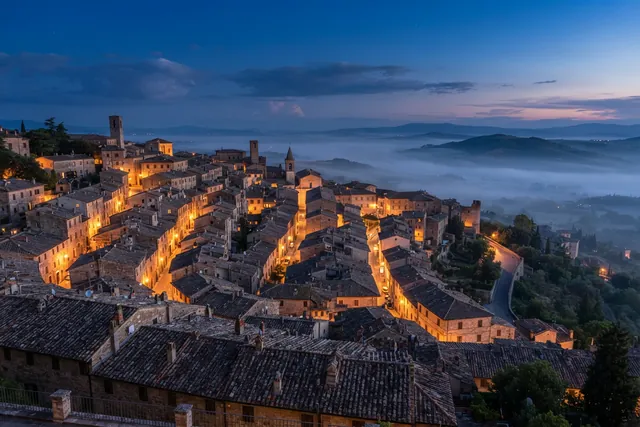
A dusk view over rooftops for an evening or travel-themed call.
Prompt: Terracotta rooftops of an old hillside town at blue hour, warm lights in a few windows, soft mist in the valley beyond
Real result · Photorealistic · made at 3:2 · about this image: Hillside rooftops at blue hour
Sizes
Background sizes for Zoom, Teams and Google Meet
Checked on 11 October 2026 against each app's own help pages. Only Zoom gives a pixel size for backgrounds you upload yourself.
| App | What its help pages say | How our 16:9 image fits |
|---|---|---|
| Zoom | PNG or JPG, up to 15 MB. Crop to your camera's shape: for 16:9, 1280 × 720 or 1920 × 1080 work well, and 1280 × 720 is the minimum if you're unsure. | 1376 × 768 px PNG, usually 1.1–2.2 MB: above the 1280 × 720 minimum. |
| Microsoft Teams | Your own uploads: JPG, PNG or BMP, with no pixel size given. Backgrounds an admin adds with Teams Premium: PNG or JPEG, 360 × 360 to 3840 × 2160. | PNG is accepted, and the size is inside the admin range. |
| Google Meet | Your own uploads: no size or format published, and your video may be cropped, hiding part of the background. Images an admin adds: JPEG, landscape, up to 1920 × 1080. | Use landscape 16:9, the shape of most webcam video. Save a JPG copy if an admin is adding it. |
Sources: Zoom Support: changing your virtual background image · Microsoft Support: change your background in Teams meetings · Microsoft Learn: custom meeting backgrounds for Teams · Google Meet Help: change your background · Google Workspace Admin Help: Meet backgrounds and effects
Image quality
Is 1376 × 768 sharp enough for a call?
For most calls, yes. In Zoom, video with a virtual background goes out at 720p at most: without a green screen Zoom caps it at 720p, and Zoom's 1080p video needs virtual backgrounds turned off. So a 1376 × 768 px background is scaled down, not up. Teams and Meet don't publish a video size for backgrounds.
Our 16:9 image is about 11 px wider than exact 16:9, a sliver at the edges. For an older 4:3 camera, generate at 3:2 and crop the middle 1131 × 848 px, as Zoom suggests cropping to your camera's shape.
Sources: Zoom Support: enabling 720p and 1080p video in meetings · Zoom Support: changing your virtual background image
Mirroring
Why your virtual background looks backwards to you
Your self-view is mirrored, like looking in a mirror, so words or a clock in the background look reversed to you. Everyone else on the call sees them the right way round. Zoom and Google Meet both say so.
Zoom's tip is to leave “Mirror my video” checked. The simplest fix is to keep text out of the background entirely, which every prompt on this page does.
Sources: Zoom: virtual background library · Google Meet Help: change your background
Add it
How to add your background in Zoom, Teams and Meet
Menu names change between app versions; each app's help page has the current steps.
| App | Where to add your image |
|---|---|
| Zoom | In the desktop app, open Settings → Video & effects → Virtual backgrounds, click the add icon and choose your image. |
| Microsoft Teams | Before or during a meeting, open the video effects, choose Add new and pick your JPG or PNG. |
| Google Meet | Before a call, click Backgrounds and effects under your preview; during a call, open Video settings. Choose Add your own personal background and upload the image. |
Sources: Zoom Support: changing your virtual background image · Microsoft Support: change your background in Teams meetings · Google Meet Help: change your background
How it works
How to make a virtual background
Your first 3 images are free, and you don't need an account for them.
- 01
Describe the room
Name the setting, keep the middle plain and put the interesting things at the edges.
- 02
Generate at 16:9
Your image is ready in about 5 seconds. Generate again until the middle looks calm.
- 03
Add it in your app
Download the PNG and add it as your background in Zoom, Teams or Meet.
Tips
Tips for a natural-looking background
Match your room's light
If your window is on the left, ask for light from the left. Matching the direction and warmth makes the cut-out look more natural.
Shoot for eye level
Ask for “eye level”, so the background's horizon sits where your camera is.
Contrast with what you wear
A background close to the color of your clothes or hair can make the edges harder for the app to separate.
Consider a green screen
Zoom says a green screen improves the virtual background effect and uses fewer system resources.
Keep it calm for work
For interviews and client calls, a plain wall or a tidy study is the safest choice. Save the fun scenes for team socials.
Good to know
What it doesn't do
Blur and removal
It doesn't blur or remove your real background; use your app's built-in blur.
Video backgrounds
Still images only. Zoom accepts MP4 or MOV backgrounds you make elsewhere.
Logos and names
It doesn't add your logo or name. Add them in an image editor; they'll look mirrored to you but not to others.
Your real room
It works from text only and can't edit a photo of your room.
Resolution
About 1 megapixel (1376 × 768 px): larger than a 720p video frame (1280 × 720), smaller than 1080p (1920 × 1080).
FAQ
Questions about the AI virtual background generator
More answers on the main FAQ and the pricing page.
What size should a Zoom virtual background be?
Zoom asks for a PNG or JPG up to 15 MB, cropped to your camera's shape. For 16:9 cameras, 1280 × 720 or 1920 × 1080 work well; if you're unsure, use at least 1280 × 720. Our 16:9 images are 1376 × 768 px, above that minimum.
What size is a Microsoft Teams background?
Microsoft doesn't give a pixel size for backgrounds you upload yourself; it asks for a JPG, PNG or BMP file. Backgrounds an admin adds for Teams Premium users must be PNG or JPEG, between 360 × 360 and 3840 × 2160. A 16:9 image from here fits both.
What size is a Google Meet background?
Google doesn't publish a size for your own uploads, and notes that your video may be cropped. Use landscape 16:9, the shape of most webcam video. Images an admin adds must be JPEG, landscape and no larger than 1920 × 1080.
Why is my virtual background backwards?
Your self-view is mirrored, so text looks reversed to you, but others see it the right way round. Zoom's tip is to leave “Mirror my video” checked. Keeping text out of the background avoids the problem.
Will the background look blurry?
Not in Zoom: with a virtual background, Zoom sends video at 720p at most (its 1080p video requires virtual backgrounds to be off), so a 1376 × 768 px image is scaled down. Teams and Meet don't publish a video size for backgrounds.
Do I need a green screen?
No. Zoom, Teams and Meet can all separate you from your room without one. Zoom says a green screen improves the virtual background effect and uses fewer system resources.
Can I add my company logo?
Not in the generator: lettering and logos in AI images are unreliable, and other companies' logos aren't allowed. Generate an empty scene, add your own logo in an image editor, and expect it to look mirrored to you. With Teams Premium, admins can also add organization backgrounds for licensed users.
What's a good virtual background for a job interview?
Something calm and believable: a plain wall, a tidy study or a soft neutral gradient. Your app's own blur is fine too. Save fantasy scenes for informal calls.
Can it make video or animated backgrounds?
No, it makes still images only. Zoom accepts MP4 and MOV video backgrounds if you have one from elsewhere.
Don't Zoom and Google Meet have their own AI backgrounds?
On some paid plans, yes: Zoom can create AI virtual backgrounds, and Google Meet can generate backgrounds with Gemini on eligible plans, for use in Meet. AIPhoto-Generator gives you a PNG you keep and can use in any app, without a workplace plan.
Is the virtual background generator free?
It's free to try: your first 3 images are free, with no account, and they don't reset. At busy times, free capacity for the whole site can run out. After that, generating uses paid images from an image pack or the Pro plan. Paid plans allow up to 4 images per prompt, and each image uses one paid image. See pricing.
Where can I find more background ideas?
The AI photo prompts collection has more scene ideas, and the AI stock photo generator guide covers plain backgrounds and textures. For slides, use the presentation background generator.
More ways to use the generator
- AI presentation background generatorSoft 16:9 slide backgrounds for PowerPoint, Google Slides, Keynote and Canva.
- AI PFP generatorAvatars, characters and aesthetic profile pictures made from a description, not from your photo.
- AI YouTube thumbnail generator16:9 thumbnail and 9:16 Shorts backgrounds with empty space for your title.
- AI newsletter header generatorWide header artwork for Mailchimp, Substack, beehiiv and Kit, ready to crop.
Guides for this
- AI photo promptsEvery prompt shown next to the real image it produced, with its style and aspect ratio.
- How to make AI photos look realWhy AI photos look fake, and nine prompt fixes shown with real results.
- AI image aspect ratiosHow to choose the right shape for an AI image, with the output size of each of the six ratios.
Start creating
Your next image is one sentence away.
Describe it, generate it, download it. Your first 3 images are free, no account needed.