Guide
AI stock photos for blogs and websites
An AI stock photo generator creates an original image from your description, so you don't have to search a stock library for something close enough. Describe the scene, pick 16:9 for a blog header or 3:2 for an in-article photo, and download a PNG, usually in about 5 seconds. Read our Terms before any commercial use, and keep real people, brands and logos out of your prompts.
Last updated
All 7 images below are real results, made with the same prompt-building code as our AI photo generator with no sign-up and shown with the exact prompt, style and aspect ratio that made each one.
AI-generated vs traditional stock photos: when each makes sense
An AI stock photo generator makes sense for generic scenes, textures and visual metaphors that no library has in quite the right form. A traditional stock photo, or one you take yourself, makes sense whenever the image has to show something real, such as a person, a place, a product or an event, or when you need a clearly written license.
| What matters | AI-generated image | Traditional stock photo |
|---|---|---|
| Originality | A new image made for your prompt. Nobody else downloads the same file, though a similar prompt can give someone else a similar picture. | Most stock photos can be licensed by anyone, so the same one may already appear on other sites, including competitors'. |
| Speed | Typically around 5 seconds an image, longer at busy times, plus the time it takes to refine the prompt. | Ready to download, but finding a close match can take many searches. |
| Cost to you | 3 free images here, then paid packs or a monthly plan. | Varies by library. |
| License clarity | Less clear. Copyright for AI images is uncertain and varies by country, and your use is subject to our Terms and the model provider's terms. | Usually clearer: the library's license spells out what you may do with the photo. |
| Real people and real places | Not suitable. Generated faces and towns are invented, even when they look familiar. | Suitable, within the license terms: real photos of real places and real people. |
| News and real events | Never. An invented scene presented as news misleads readers. | Use real, credited photos of the actual event, or your own. |
Reach for an AI image when
- The post needs a generic scene, a texture or a visual metaphor.
- The topic is an idea, such as focus, growth or a fresh start, rather than a person or a place.
- No library has quite the shot you have in mind.
Use a real photo when
- The image has to show a real person, place, product or event.
- You are illustrating news or anything readers will take as fact.
- You need a written license that lists what you may do with the image.
Blog header prompts with real results
A blog header prompt works when it asks for a wide 16:9 frame, one clear subject and room for the title. The two real results below take two routes: a literal desk scene that keeps its right side empty, and a paper boat that stands in for an idea.
Blog header
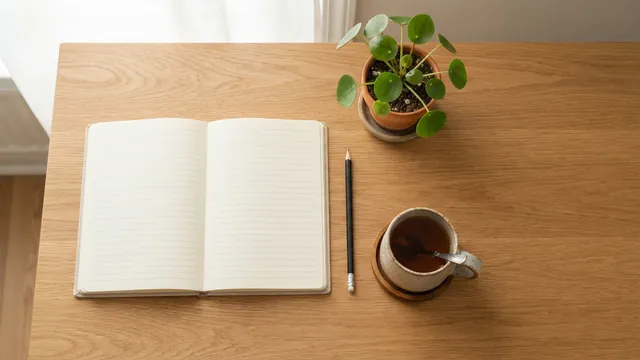
Desk flat lay header
Prompt
Top-down view of a tidy oak desk with a blank open notebook, a pencil, a cup of tea and a small potted plant, soft daylight, empty space on the right side
- Style
- Photorealistic
- Ratio
- 16:9
The Photorealistic style adds: “photorealistic photograph, natural lighting, sharp focus, high detail”
What came back
The prompt ends with “empty space on the right side”, and the image came back with the notebook, pencil, tea and plant grouped on the left and in the middle, and a wide strip of plain oak on the right. That bare wood is where a post title can sit. The notebook pages came back ruled but empty, with nothing written on them.
Try changing
Swap the props for your topic, such as a camera and a folded map for a travel post, and keep “empty space on the right side” at the end.
Blog header
Paper boat in a puddle
Prompt
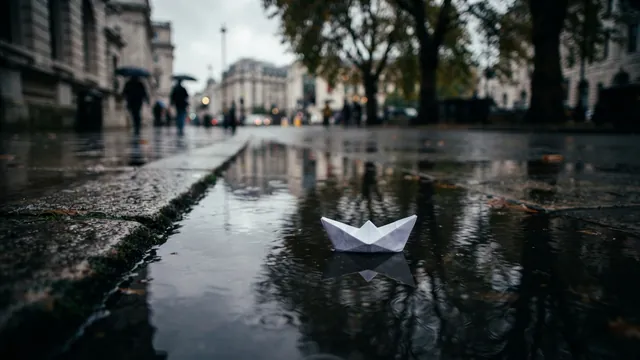
A small white paper boat floating on a rain puddle on a city sidewalk, reflections of trees in the water, overcast light
- Style
- Cinematic
- Ratio
- 16:9
The Cinematic style adds: “cinematic film still, dramatic lighting, shallow depth of field, rich color grading”
Why a metaphor
A small paper boat setting off on a wet street can stand for a topic without showing it: a small start, a first launch, a rainy-day reading list or getting through a hard week. The picture sets the mood and the title says what the post is about.
What came back
The boat floats in a puddle by the curb, with trees and stone buildings reflected in the water and blurred people under umbrellas far behind. With the Cinematic style on, the focus is shallow and the colors are cool and muted. The boat sits close to the middle of the frame, where a theme's crop is unlikely to reach it. See what the Cinematic style adds.
Other single-object metaphors
A seedling pushing through cracked soil for growth, one lit window on a dark street for late work, a compass on a table for planning. Keep one object as the subject.
Background and texture prompts
A background prompt describes a surface or a field of color and nothing else, so the image can sit behind words without competing with them. Ask for texture or light rather than objects, and choose 16:9 so the result fills a header, a slide or a full-width band.
When a quiet background beats a scene
- Behind a title. When your theme prints the post title over the featured image, a busy scene makes the words hard to read.
- On slides. One calm backdrop repeated across a deck keeps attention on the text, not the picture.
- As a section divider. A thin band of texture between the parts of a long page gives the eye a pause without adding a new subject.
Background
Plaster wall texture
Prompt
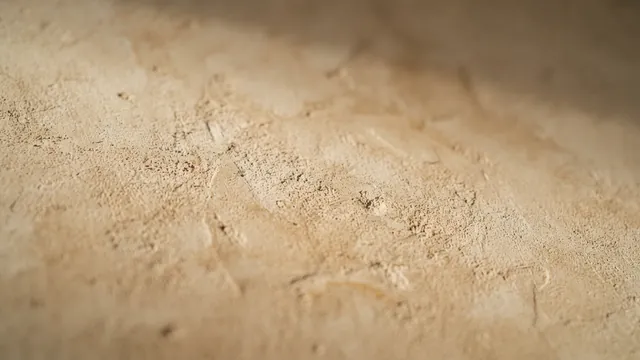
Close-up of a warm beige lime plaster wall with soft raking light revealing subtle texture, abstract background photograph
- Style
- No style
- Ratio
- 16:9
What came back
Warm beige plaster with pits and scraped marks, picked out by low light. A band across the middle is sharp, the top and bottom fall softly out of focus, and the top right corner sinks into shadow. There is no object in it, so nothing competes with words laid on top.
No style
With No style the prompt is sent exactly as written, so it ends with its own camera words: “abstract background photograph”.
Try changing
The surface and the color: “pale grey concrete”, “sage-green linen”, “white marble with soft grey veins”.
Background
Peach and lavender backdrop
Prompt
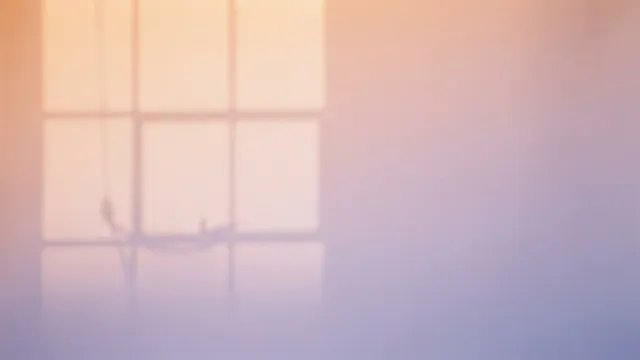
Soft gradient of warm peach to lavender light on a seamless paper backdrop with the faint shadow of a window frame, minimal abstract background, photograph
- Style
- No style
- Ratio
- 16:9
What came back
A soft blend from peach at the top left to lavender at the bottom right, with the shadow of a window frame across the left half. The right half is smooth color with no detail, which leaves room for a headline or a slide title.
Try changing
The two colors. For a series, keep the rest of the wording, change only the colors and compare the results side by side.
In-article photo prompts
An in-article photo shows readers the place, season or setting a section talks about, and breaks up long stretches of text. Use 3:2, the classic photo shape, and describe the shot the way a photographer on location would: the place, the time of day and two or three details.
In-article photo
Hillside rooftops at blue hour
Prompt
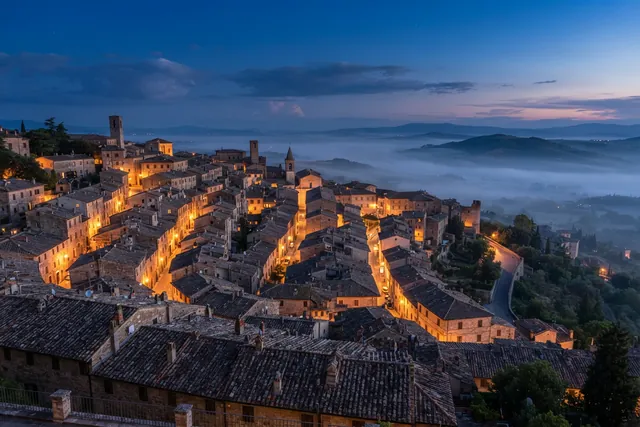
Terracotta rooftops of an old hillside town at blue hour, warm lights in a few windows, soft mist in the valley beyond
- Style
- Photorealistic
- Ratio
- 3:2
The Photorealistic style adds: “photorealistic photograph, natural lighting, sharp focus, high detail”
What came back
A hillside town under a deep blue sky, with mist filling the valley and warm lamps along the streets. Two details differ from the prompt: in the blue light the roof tiles look grey-brown rather than terracotta, and far more than a few windows are lit.
An invented place
The prompt names no real place, so treat this town as invented. It may remind you of somewhere real, but don't caption it as a named place or use it to illustrate a trip there.
In-article photo
Autumn porch still life
Prompt
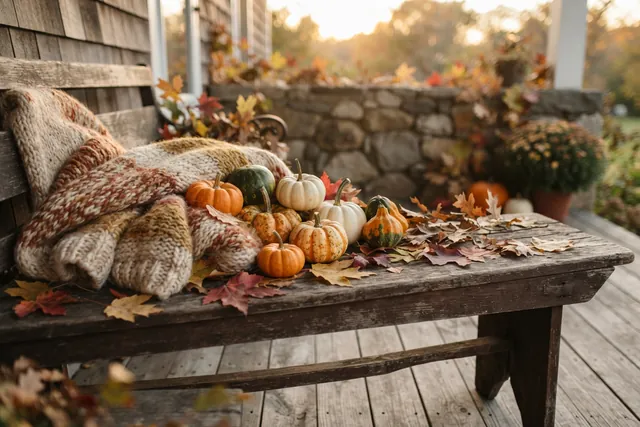
Autumn still life on a wooden porch bench: small pumpkins, a knitted wool blanket and fallen maple leaves, nothing else on the bench, soft late-afternoon light
- Style
- Editorial
- Ratio
- 3:2
The Editorial style adds: “editorial magazine photography, refined composition, natural tones”
What came back
Only what the prompt named, on a weathered wooden bench: small orange, white, green and speckled pumpkins, a chunky knitted blanket in cream, rust and mustard, and fallen leaves in red, orange, yellow and brown. Behind the bench, out of focus, are a stone wall, a pot of autumn flowers, more pumpkins and a low sun through the trees.
Why “nothing else on the bench”
Our first render of this prompt added a book with a printed title that nobody asked for. We added “nothing else on the bench” and generated again, and the bench came back with only the pumpkins, the blanket and the leaves. The words name only the bench, and the porch behind it still came back with flowers and more pumpkins.
In-article photo
Workspace with a view
Prompt
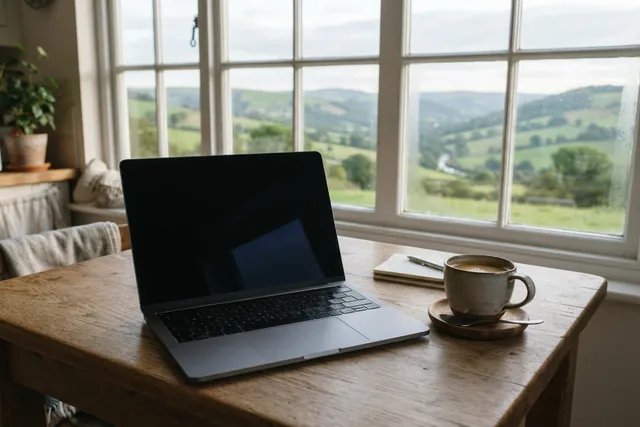
A plain unbranded laptop with no logo or lettering and a dark screen on a kitchen table beside a large window overlooking green hills, a mug of coffee, calm morning light
- Style
- Photorealistic
- Ratio
- 3:2
The Photorealistic style adds: “photorealistic photograph, natural lighting, sharp focus, high detail”
Why a dark screen
A screen showing an app or a web page would be full of small lettering, which this model renders unreliably. The prompt asks for “a dark screen” to keep that lettering out of the picture.
What came back
A plain laptop with a dark, blank screen and no logo or badge in view, on a worn wooden table by a window over green hills and a winding river. The model added a small notebook with a pen, a wooden saucer and spoon under the coffee, a potted plant on a shelf, cushions by the window and a throw over a chair.
Why “no logo or lettering”
Our first render of this prompt showed a laptop with a small printed badge resembling a real laptop model name. We generated it again with “A plain unbranded laptop with no logo or lettering” at the start of the prompt, and the badge was gone. Zoom in on gadgets, packaging and signs before you publish.
For more landscape ideas, see the alpine lake at dawn and the dunes at sunset in our prompt library. To keep in-article photos believable, see our guide on how to make AI photos look real.
How to turn an article topic into an image prompt
To turn an article topic into an image prompt, decide whether the picture should show the topic literally or stand for it as a metaphor, describe one clear subject, say where the empty space for the title goes, and keep words out of the image. Then add the light and the frame, and generate two or three versions to choose from.
Choose literal or metaphor
A literal image shows the topic itself: a desk for a post about planning. A metaphor stands in for it: the paper boat for a small start. Literal suits how-to posts; a metaphor suits opinion pieces and abstract topics.
Describe one clear subject
Give the eye one thing to land on. Headers often appear small, in post lists and link previews, where several subjects blur into one.
Leave empty space for a title
Say where the empty area should go, for example “empty space on the right side” or “plain sky in the upper half”.
Keep text out of the image
Leave out headlines, signs and screens with words on them. Set the title in your CMS or a design tool, so every letter comes out as you typed it.
Worked example
A header for a post about planning your week
The post is practical, so the image is literal: the tools of planning on a desk, seen from above, with room left for the title. Here is how the real desk prompt from the header examples maps onto those decisions.
Top-down view of a tidy oak desk with a blank open notebook, a pencil, a cup of tea and a small potted plant, soft daylight, empty space on the right side
Frame
“Top-down view of”
A flat angle with no horizon, so there is nothing to tilt or cut off.
Subject and props
“a tidy oak desk with a blank open notebook, a pencil, a cup of tea and a small potted plant”
Literal: the tools of planning, with tea and a plant for a calm mood.
Light
“soft daylight”
Gentle light without hard shadows falling across the empty area.
Space for the title
“empty space on the right side”
Where the title goes. The result kept the right side of the desk clear.
Header sizes and cropping
AIPhoto-Generator makes 16:9 images at 1376 × 768 pixels and 3:2 images at 1264 × 848 pixels, about 1 megapixel each, which suits headers and in-article photos on web pages. Many themes crop the header to their own shape, so keep the subject near the center and leave some margin around it.
| Use | Ratio | Native size (px) | Tip |
|---|---|---|---|
| Blog header | 16:9 | 1376 × 768 | Keep the subject near the center and leave space for the title. |
| Background or slide | 16:9 | 1376 × 768 | Ask for a surface or light, not objects. |
| In-article photo | 3:2 | 1264 × 848 | The classic photo shape; it sits well in a column of text. |
No upscaling in the app. If your theme asks for a header wider than 1376 pixels, the image is stretched to fit and can look soft. Check the size your theme uses before you pick a layout that fills the whole screen.
The copies on this page are not the originals. The example images were resized for the web to 640 and 1280 pixels wide, cropped to the exact aspect ratio where needed and converted to WebP, without retouching; for every aspect ratio except 16:9 the 1280-pixel copy is larger than the image the generator returns. Download a result in the generator to get the full PNG.
Alt text, file names and captions for AI images
Write alt text for an AI image the way you would for any photo: say plainly what is in the picture, in one sentence, without keyword stuffing. Then rename the file so it describes the image, and add a caption that says it is AI-generated wherever readers might take it for a real photo.
Worked example
Alt text, file name and caption for the rooftops photo
- Alt text, keyword-stuffed
- ai stock photo travel blog header image town rooftops dusk free stock image
- Alt text used on this page
- Rooftops of an old hillside town at blue hour, with lit streets and mist in the valley beyond
- File name from the download
- aiphoto-generator-terracotta-rooftops-of-an-old-hillside-town-at-b.png
- File name after renaming
- hillside-town-rooftops-blue-hour.png
The generator names a download after the start of its prompt, cut off at a fixed length. Rename it to what the image shows before you upload it. A caption such as “AI-generated image of an invented hillside town” tells every reader what they are looking at; we don't add a visible watermark, so the caption is how they find out.
- Describe what is visible: the subject, the setting and the light if it matters.
- Leave out keywords that aren't in the picture.
- Skip “image of” and “photo of”; screen readers already announce an image.
- Write one sentence, not a list of tags.
Licensing and commercial use
Commercial use of an AI image may be possible, but it depends on our Terms, the model provider's terms and the law where you publish. We don't claim ownership of the images you generate. Copyright protection for AI-generated images varies by country and may not be available at all; where it isn't, you may not be able to stop others from reusing an image you published.
No library license
An AI image doesn't come with a license document. What you may do with it is set by our Terms and the model provider's terms, and both can change.
Real people
The Terms forbid depicting real, identifiable people in a misleading, sexual, defamatory or harmful way. For a blog, describe invented people by what they wear and do, never by name.
Brands, logos and characters
The Terms forbid infringing trademarks or copyrighted characters. The model can add brand-like marks without being asked: our first render of the laptop above had a small printed badge resembling a real laptop model name until we wrote “no logo or lettering” into the prompt. Check products, screens and signs.
Your responsibility
You are responsible for reviewing an image before you use it. For ads, product pages or client work, read the current terms first and get legal advice where you need it.
The full wording is in the “Generated images” and “Acceptable use” sections of our Terms of Service. This page explains them in plain words and is not legal advice.
What this tool can't do for blog images
On the free plan you get a single PNG per prompt (paid plans allow up to 4), about 1 megapixel in size and generated from your words alone. AIPhoto-Generator can't edit or upscale an image, it handles words inside images unreliably, and only your first 3 images are free.
- About 1 megapixel
- A 16:9 result is 1376 × 768 pixels and a 3:2 result is 1264 × 848. That suits web pages and slides, but not large prints.
- No editing or upscaling
- You can't upload a photo, retouch or inpaint part of a result, upscale it, set a seed or add a reference image. To change something, change the prompt and generate again; every result is new.
- Text in images is unreliable
- Moda's own description of this model points to its higher tiers for “heavy in-image text”. Add titles, captions and logos afterwards.
- 3 free images
- Your first 3 images are free, with no account and no email, and they don't reset. After that, generating uses paid images from an image pack or the Pro plan. Free capacity is shared, so it can run out at busy times, and limits may change. A single image is usually ready in about 5 seconds. Need more images? See pricing.
Questions about AI stock photos
An AI header is original but not guaranteed one of a kind, a series can match closely but not exactly, and logos or photos go on afterwards in a design tool.
Will other websites end up with the same AI image?
Not the same file. Each result is generated fresh, with no seed to repeat it, so even your own prompt won't return the same picture twice. Someone else's similar prompt can still produce a similar-looking picture, so an AI header is original but not guaranteed to be one of a kind.
Can I make matching headers for a blog series?
You can get close. Keep the style, the aspect ratio and the words for light and backdrop the same, and change only the subject. Each image is a new generation, so expect some drift in color and framing, and make a few to choose from.
Can I put my logo or my own photo into a header?
Not in AIPhoto-Generator. It is text to image only, with no photo upload, editing or reference images, and logos drawn by the model can come out garbled or look like real brands. Generate the scene here, then add your real logo or photo on top in a design tool.